Browse and Find
Filter, Sort and Resize Thumbnails
Show only one kind of item, choose the order, and make thumbnails bigger or smaller.
Filter an album
- Open an album.
- Tap Filter (next to the magnifying glass at the bottom).
- Choose Favorites, Photos, Videos, Live Photos, GIFs, PDFs, Other or iCloud only.
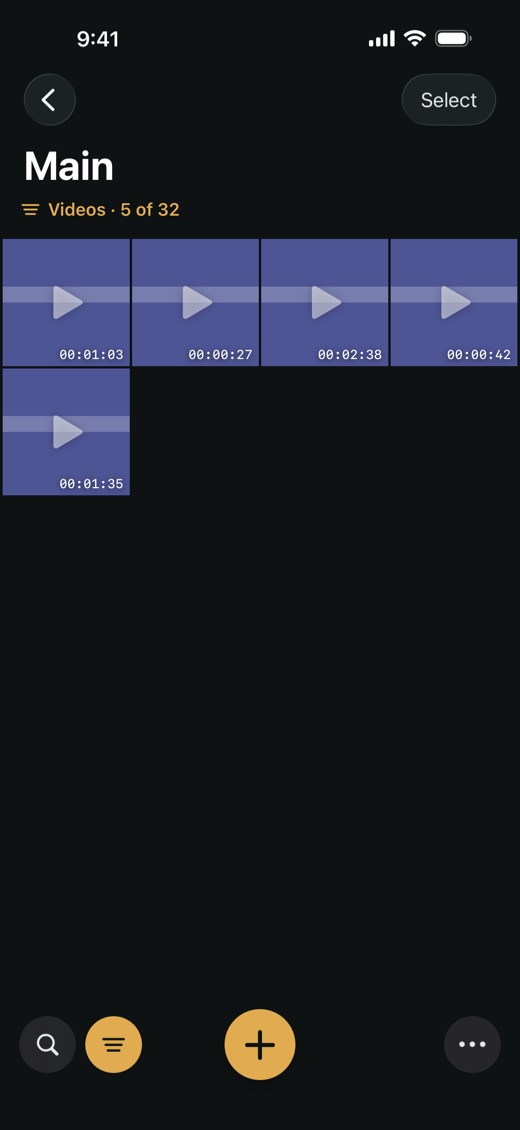
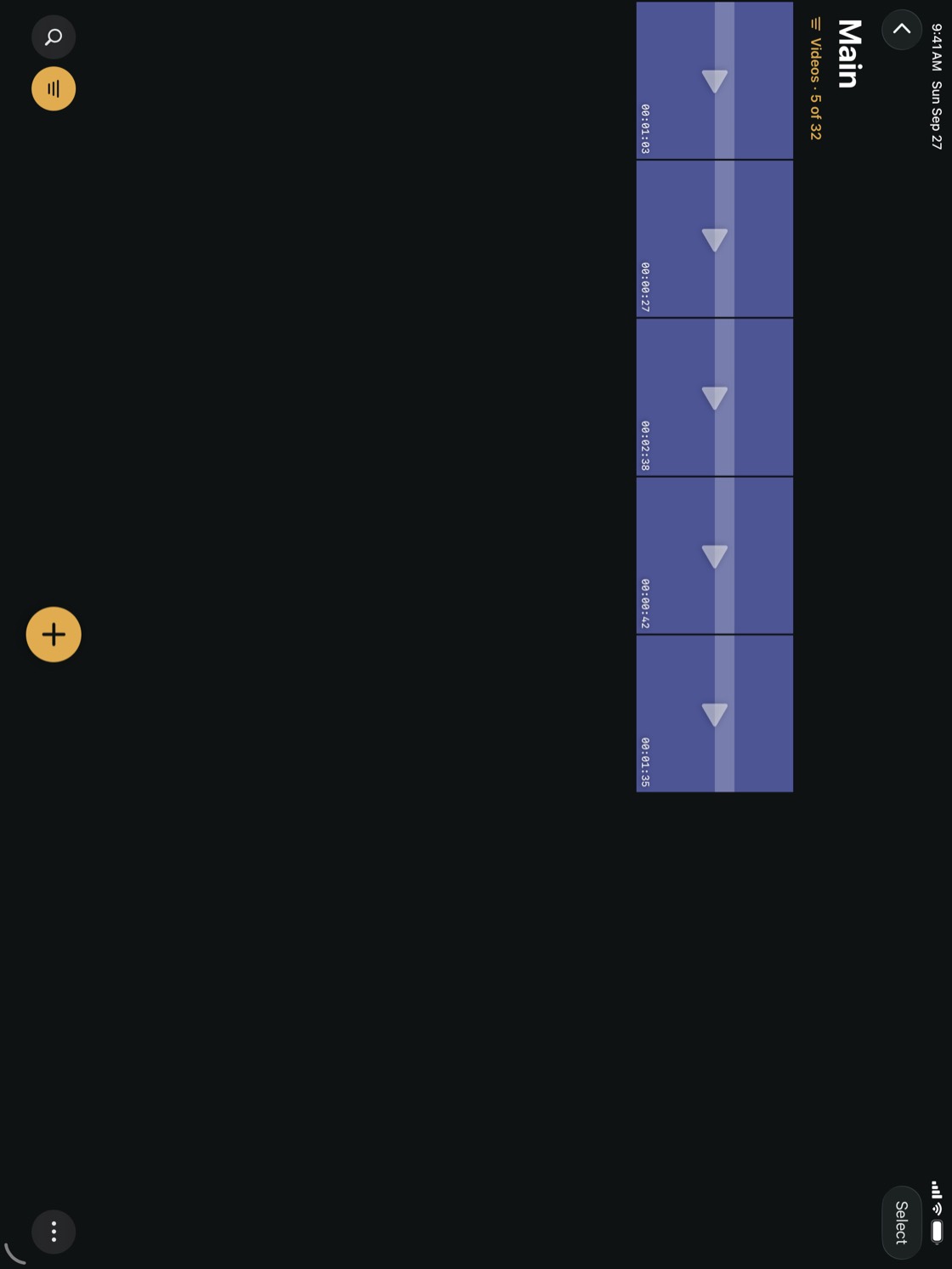
While a filter is on, the Filter button turns brass and a brass line under the album name says what you're seeing and how many items out of the whole album. To see everything again, choose All Items.
- Photos includes Live Photos; Live Photos shows only them.
- Other is every document that isn't a PDF or a GIF.
- iCloud only shows items whose content is in iCloud and not on this iPhoneiPad.
Make thumbnails bigger or smaller
- In an album, tap More (the three dots at the bottom right).
- Tap Zoom In for bigger thumbnails or Zoom Out to fit more in a row.
The menu stays open, so you can tap several times. A row holds foureight thumbnails at first.
NoteEach album remembers its own filter and thumbnail size on this iPhoneiPad.
Sort an album
- In an album, tap More (the three dots at the bottom right), then Sort By.
- Choose Date Created, Date Added, Name or File Size, then the direction below it.
- To arrange items by hand, choose Custom. Touch and hold a thumbnail, drag it where you want it, and tap Done.
The sort order is saved with the album, so it follows the album to your other devices through iCloud.
Hide or blur thumbnails
In an album, More has All Previews: Show or Hide, and Blur or Sharp. For a single item, touch and hold its thumbnail and use Single Preview. Default follows the album's choice, and the album follows Show item previews and Blur item previews in Settings.