Browse and Find
Search Your Vault
Find an item by its name or by words inside a scanned document, across the whole vault or in one album.
- In the album list, tap Search (the magnifying glass at the bottom left).
- Type what you're looking for in Search this vault.
- Tap a result to open it. Swipe left or right to go through the other results.
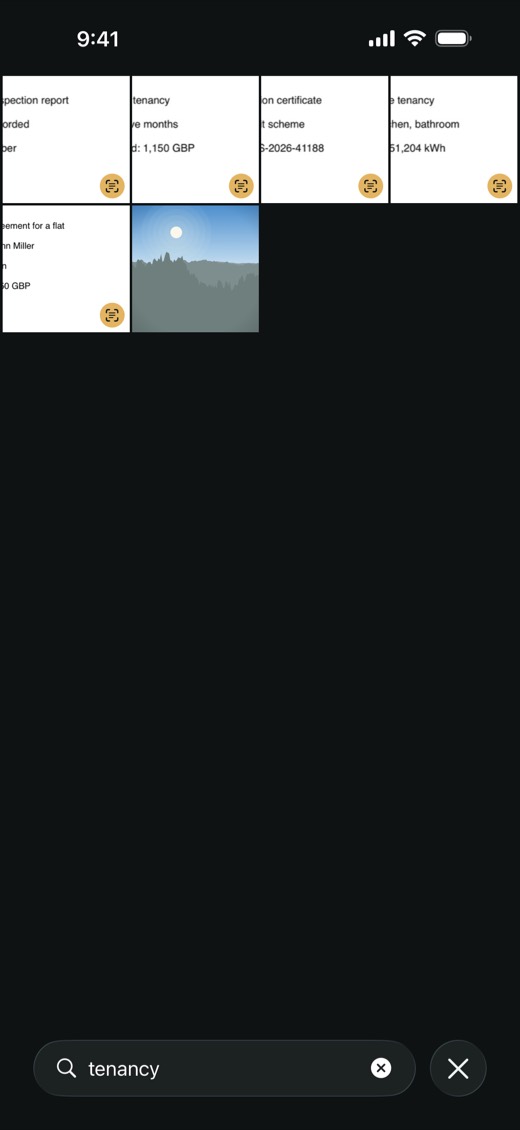
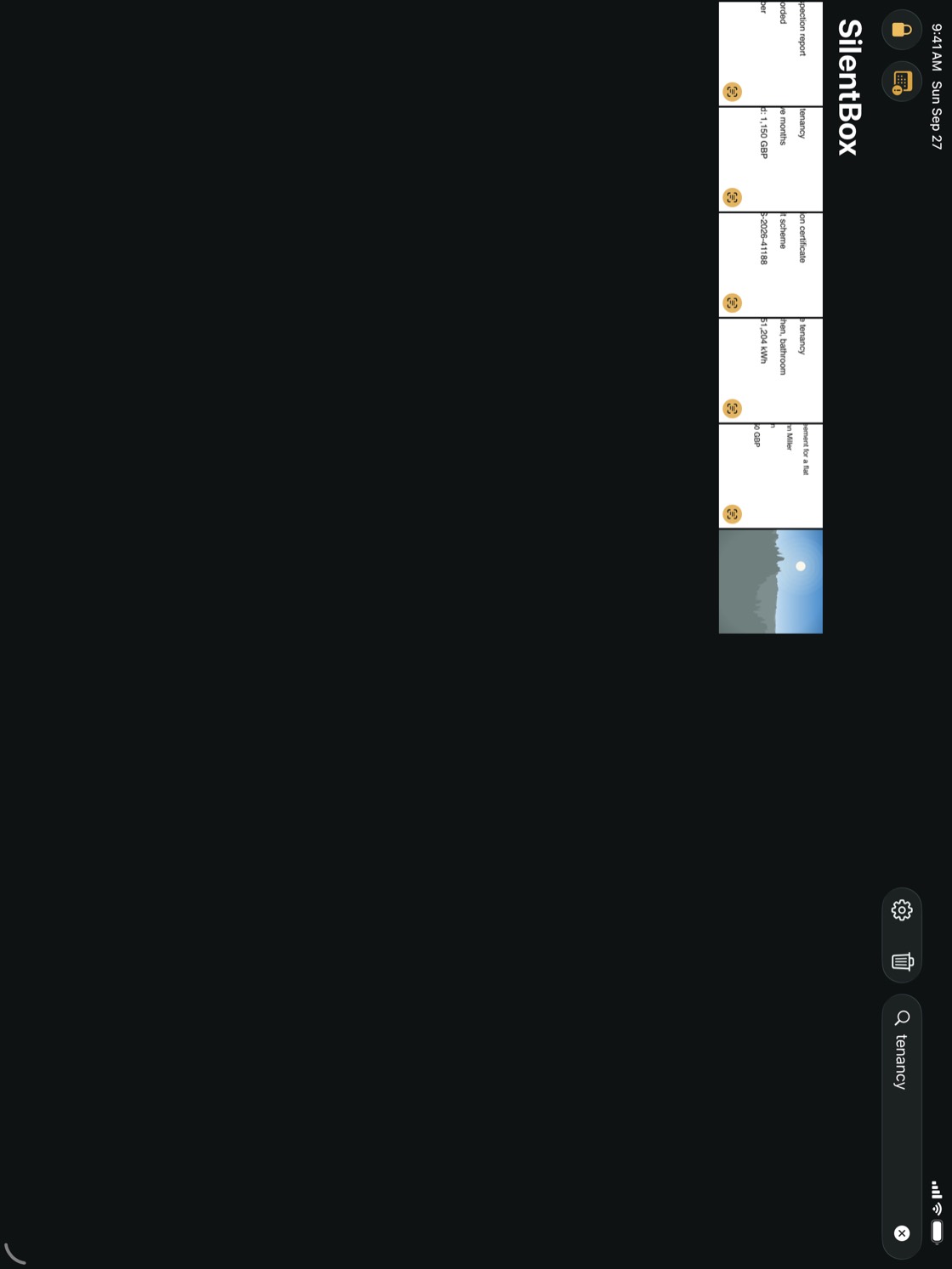
To search only one album, open the album first and tap Search there. The field then says Search this album, and nothing outside the album is searched.
How search matches
- A name matches when it contains what you typed, anywhere in it.
- In recognized text, the start of a word is enough: "contr" finds "contract" and "contracts".
- With several words, it finds items whose text contains all of them, not necessarily side by side.
- In recognized text, capital letters and accents don't matter.
NoteItems in a locked album don't show up in search until you unlock that album. The Trash isn't searched from the album list; open the Trash and search there.
TipTo make a photo of a document searchable by its text, see Find words in scans.