iCloud
Turn On iCloud
Keep your vault in your own iCloud, so it's on your other devices and not only on this iPhoneiPad.
- At the top of the album list, tap Settings (if you don't see it, tap … first).
- Under iCloud, turn on Sync with iCloud.
- Under What goes to iCloud, choose Selected albums or Everything.
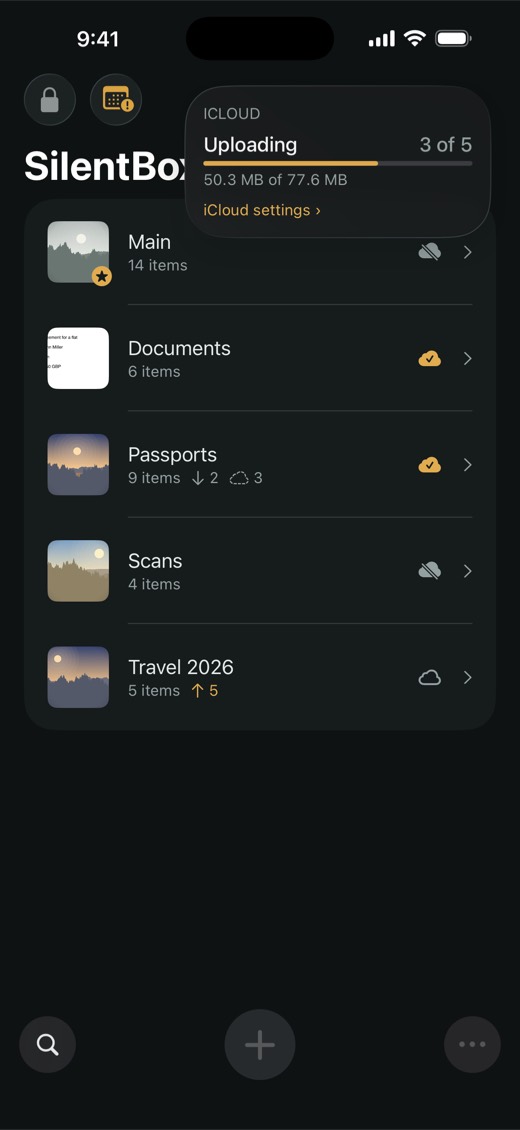
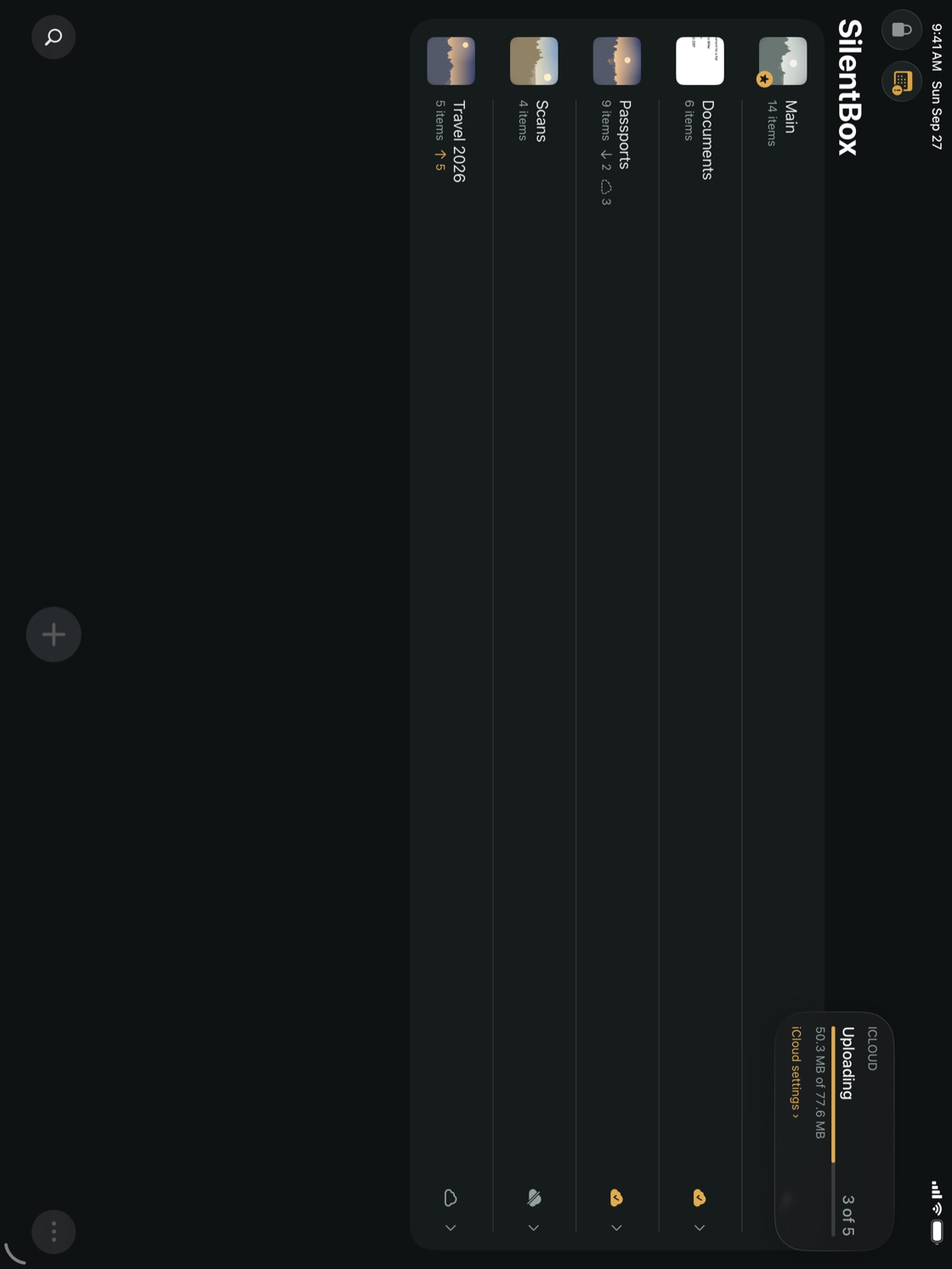
Sync is off until you turn it on. Only encrypted data is uploaded, and it's stored in your own iCloud storage, not on our servers.
The first time you turn it on in a vault, Selected albums is chosen, so nothing is uploaded until you pick an album. To pick albums, or to send everything, see Choose which albums sync.
From then on, SilentBox syncs by itself when something changes. To sync right away, tap Sync Now (the circular arrow at the top of the album list), or Sync Now in Settings. While it syncs, the arrow turns into a spinner; tap it to see what is being uploaded or downloaded, and how much is left.
TipUnder Sync Now, Settings shows when the vault last synced. If something stops it — you're signed out of iCloud, or your iCloud storage is full — the reason appears there in red.
NoteiCloud sync is part of the free trial and the Full Version. If the trial ends and you don't buy, anything not yet uploaded is uploaded first, and then sync pauses. Nothing is removed from iCloud, and items you open still download.