Albums
Lock an Album
Keep one album closed even while the vault is open, so showing someone a photo never shows them everything.
- In the album list, touch and hold the album, or swipe left on it.
- Tap Lock.
The album now says Locked in the album list and shows no cover. Until you open it, its items don't appear in search or in the Trash.
Open a Locked Album
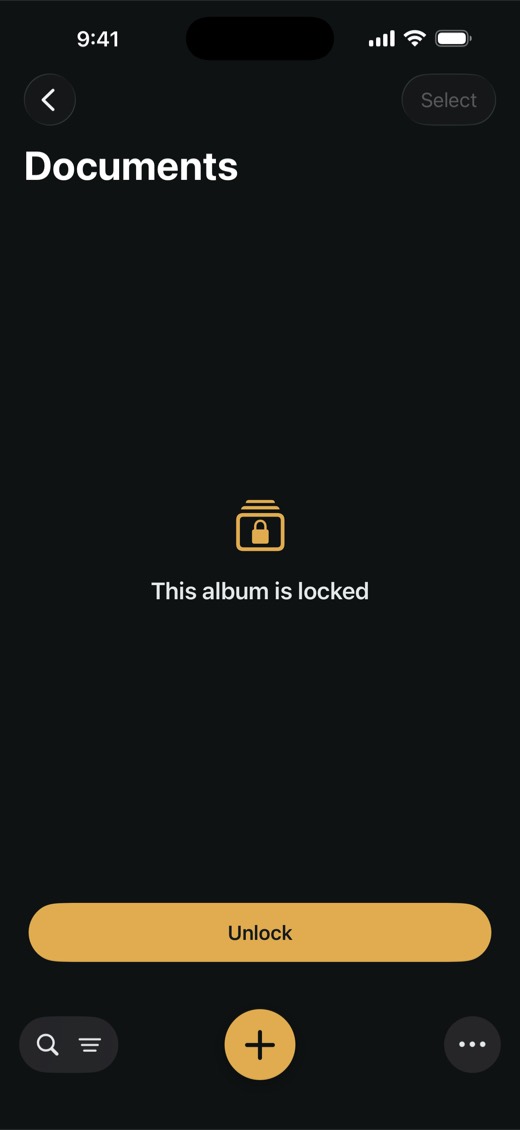
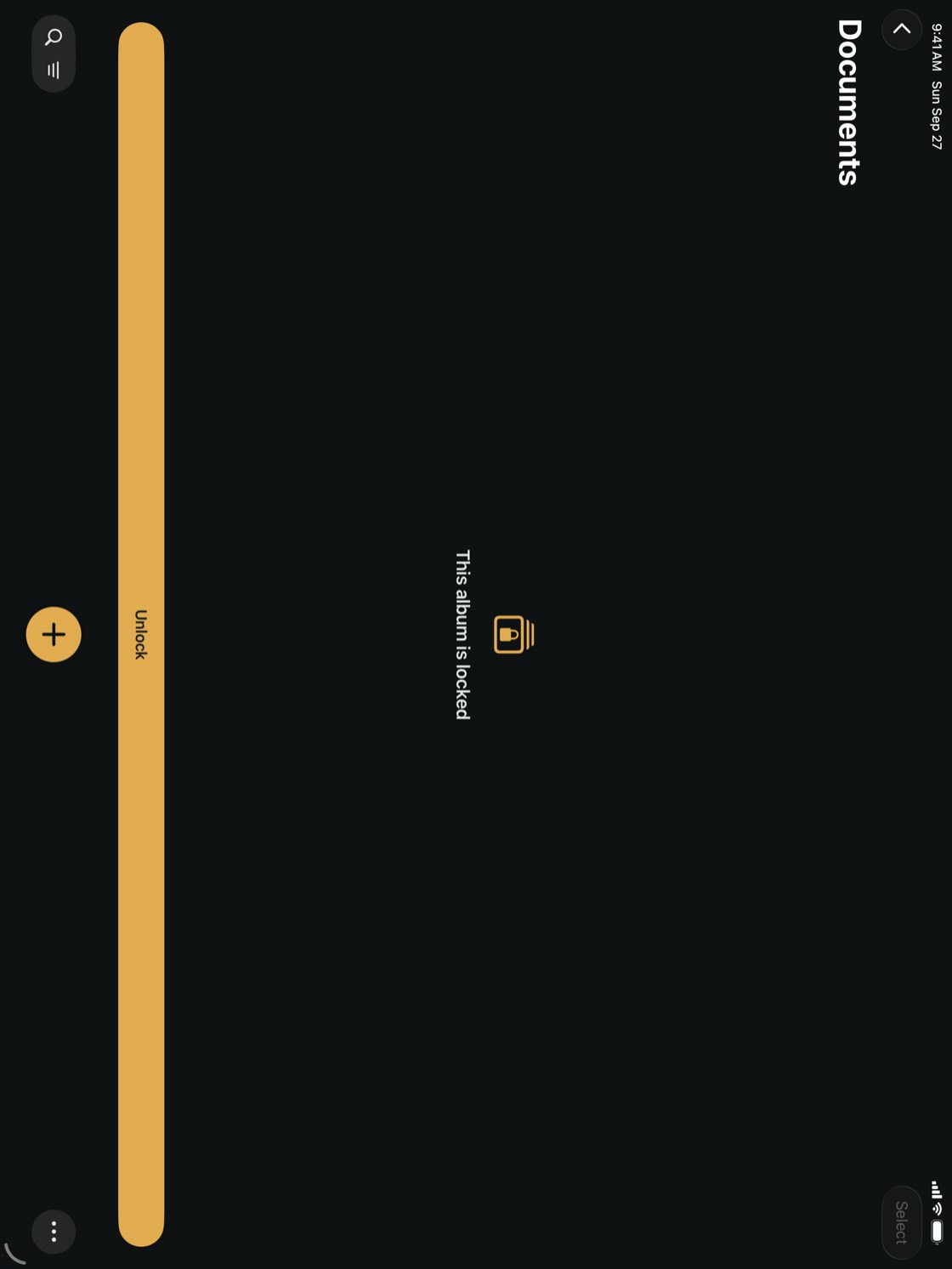
- Tap the album. You see This album is locked.
- Tap Unlock, then confirm the way you unlock the vault: Face ID or Touch ID if you use it for the vault, otherwise your PIN or your vault password.
The album stays open until the vault locks. To close it sooner, touch and hold it in the album list and tap Lock.
Remove the Lock
- Make sure the album is closed — it says Locked in the album list.
- Touch and hold the album, or swipe left on it, and tap Remove Lock.
- Confirm with Face ID or Touch ID, your PIN or your vault password.
NoteLocking albums is part of the Full Version. Removing a lock always works.
TipLocked albums aren't offered when you save something from another app with Share, and deleting a locked album asks you to confirm it's you first.