Browse and Find
View Photos and Videos
Open an item full screen, then swipe through the album the way you do in Photos.
- In an album, tap a thumbnail.
- Swipe left or right to go to the next or previous item.
- To zoom in on a photo, pinch or double-tap where you want to look. Double-tap again to zoom back out.
- Tap a photo once to hide the title and buttons. Tap again to bring them back.
- When you're done, tap Close (the X at the top left).
Videos start playing when you open them, with the usual playback controls. Only the video on screen plays; swipe away and it pauses.
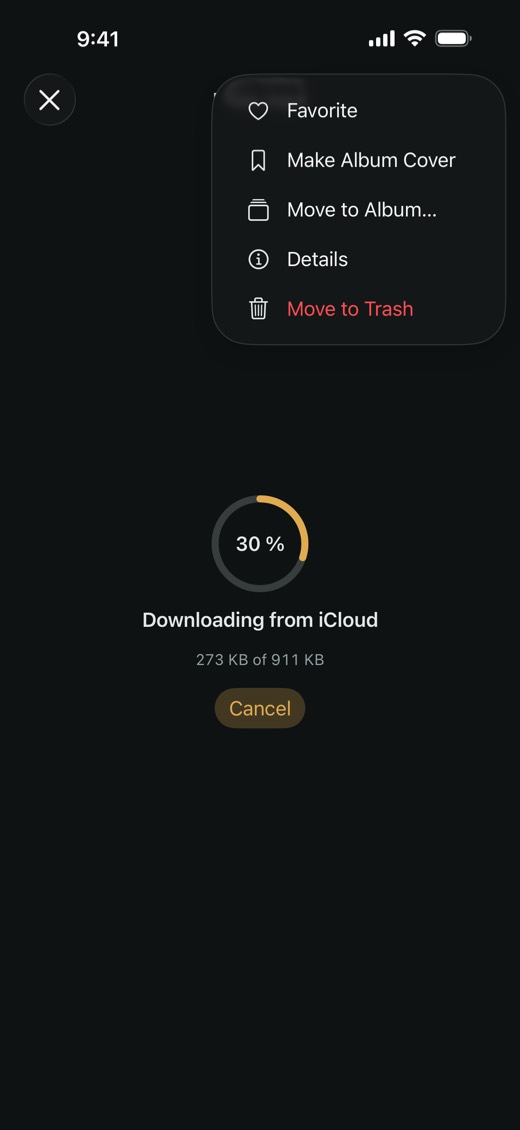
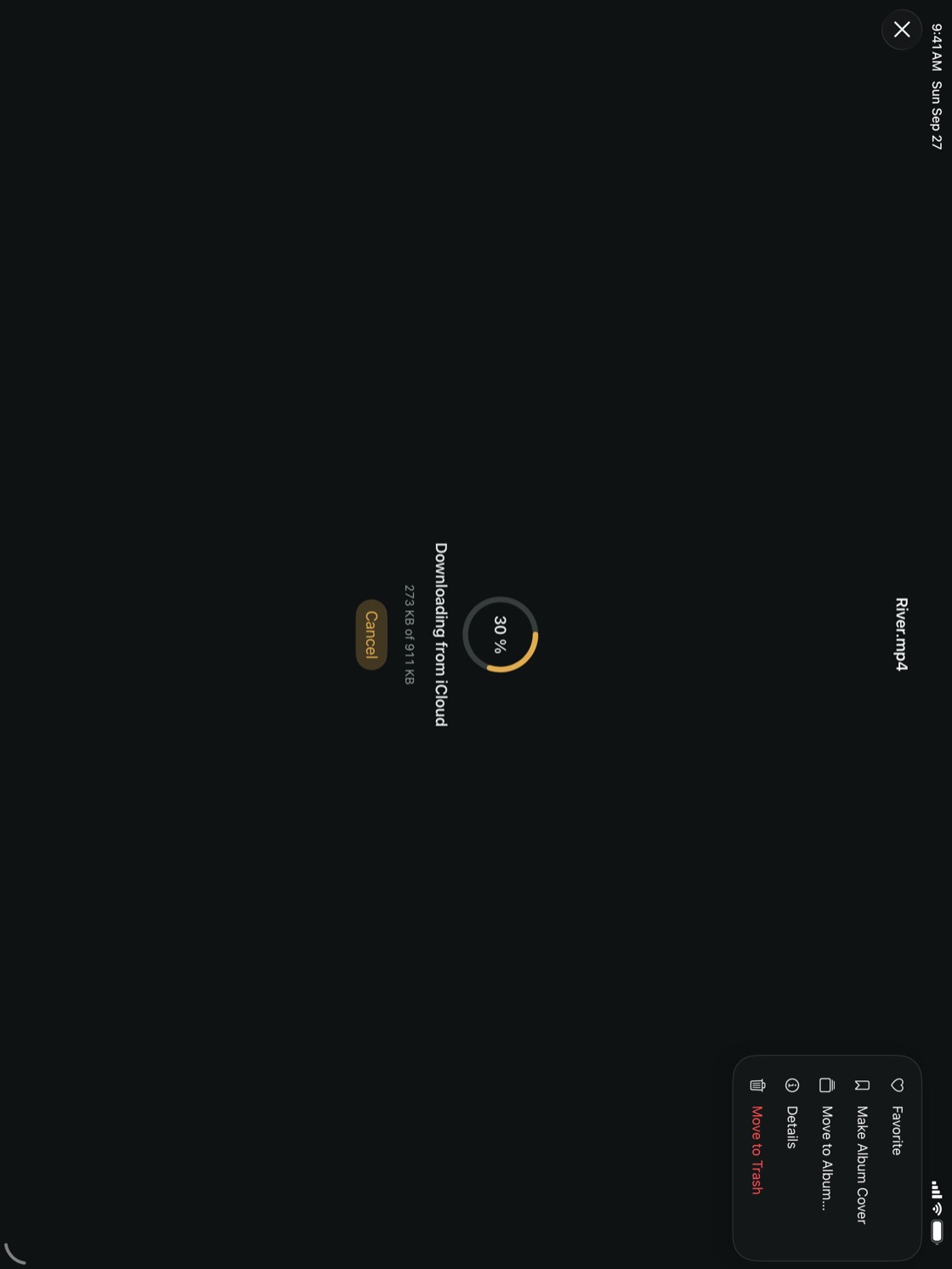
Tap More (the three dots at the top right) for Favorite, Move to Album…, Details and Move to Trash. When album covers are on, Make Album Cover is there too.
TipWhile a photo is zoomed in, dragging moves around the photo. Zoom back out to swipe to the next item.
Live Photos
SilentBox keeps a Live Photo as a still image; the motion isn't saved. To find them in an album, use the Live Photos filter — see Filter and resize thumbnails.
Videos in iCloud
A video that's only in iCloud downloads when you open it, with the progress on screen. Cancel stops the download; Download and Play starts it again.
NoteAn item is decrypted only when you open it, and only in memory. SilentBox lets it go once you've moved on.